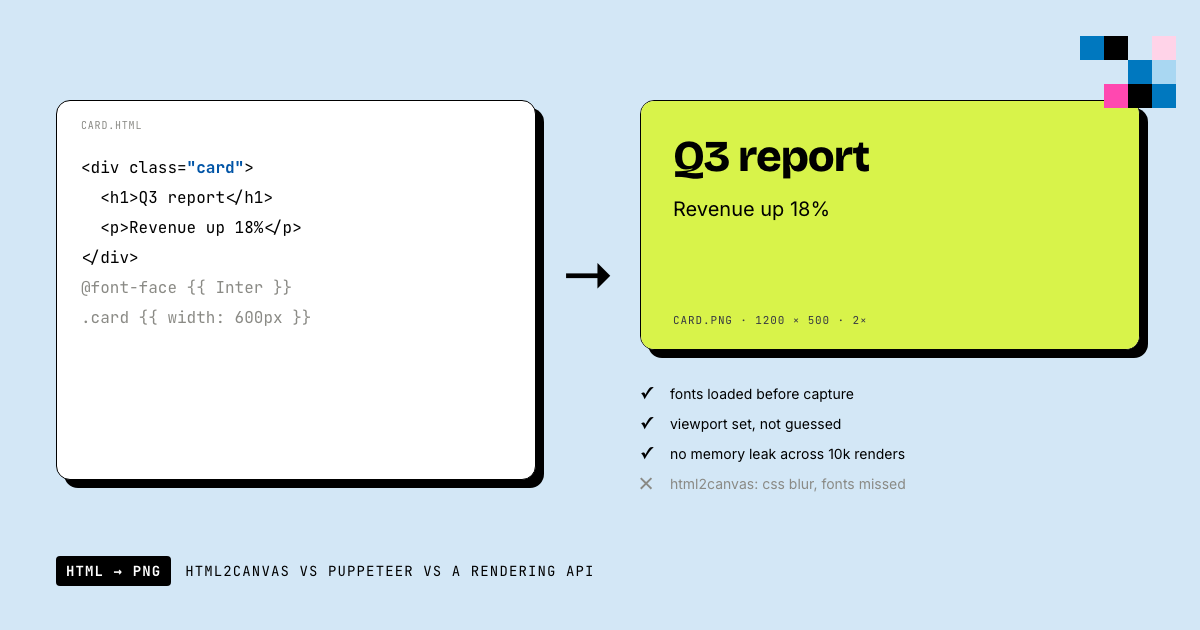
HTML to image conversion renders an HTML/CSS layout into a static PNG, JPG, or WebP file, used for OG images, social cards, certificates, and any visual generated from a template instead of hand-designed per instance.
The problem with rendering HTML as images
You have a Next.js blog. Every post needs an OG image. You could design each one in Figma, or you could render your existing HTML as an image. This is the "html to image" problem, and it's deceptively hard.
The rendering part is straightforward. The hard part is everything around it: font loading race conditions, viewport sizing that doesn't match what you expect, memory leaks in long-running processes, and the gap between "works on my machine" and "works at 3am when the CI pipeline runs."
This guide walks through the three real approaches (client-side rendering, headless browsers, and rendering APIs), with production code, benchmarks, and the failure modes you'll hit at scale. I've built image generation pipelines that render 50K+ images/month, and most of the lessons here came from things breaking at 2am.
How browsers actually render HTML to pixels
Before picking a tool, you need to understand what's happening under the hood. Every approach to HTML-to-image conversion is essentially asking a browser engine to do its normal job (render pixels) and then intercept the result as a file.
The browser rendering pipeline:
HTML → DOM Tree
              ↘
CSS → CSSOM    → Render Tree → Layout → Paint → Composite → Pixels
Layout computes the geometry: where every box goes, how text wraps, what overflows. Paint fills in colors, borders, shadows, images. Composite handles layers, transforms, and opacity.
When you "screenshot" a page, you're capturing the output after compositing. The quality of your HTML-to-image tool depends on how faithfully it reproduces this pipeline.
This is where the three approaches diverge:
- html2canvas re-implements Layout + Paint in JavaScript on a
<canvas>element. It's a partial reimplementation: fast but inaccurate. - Puppeteer/Playwright launches an actual Chromium instance and captures the real composite output. Accurate but heavy.
- Rendering APIs run Chromium in managed infrastructure and return the result over HTTP. Accurate and lightweight (for you).
Approach 1: Client-side with html2canvas
How it actually works
html2canvas doesn't take a screenshot. It traverses the DOM, reads computed styles via getComputedStyle(), and manually redraws everything onto a <canvas> element using the Canvas 2D API.
// Simplified version of what html2canvas does internally:
function renderElement(ctx, element) {
  const styles = getComputedStyle(element);
  const rect = element.getBoundingClientRect();

  // Draw background
  ctx.fillStyle = styles.backgroundColor;
  ctx.fillRect(rect.x, rect.y, rect.width, rect.height);

  // Draw border (simplified; real borders are complex)
  if (styles.borderWidth !== '0px') {
    ctx.strokeStyle = styles.borderColor;
    ctx.lineWidth = parseFloat(styles.borderWidth);
    ctx.strokeRect(rect.x, rect.y, rect.width, rect.height);
  }

  // Draw text
  if (element.childNodes[0]?.nodeType === 3) {
    ctx.fillStyle = styles.color;
    ctx.font = `${styles.fontWeight} ${styles.fontSize} ${styles.fontFamily}`;
    ctx.fillText(element.textContent, rect.x, rect.y + parseFloat(styles.fontSize));
  }

  // Recurse into children
  for (const child of element.children) {
    renderElement(ctx, child);
  }
}
This is a massive simplification. The actual html2canvas source is ~15,000 lines because CSS is incredibly complex. And even at 15K lines, it doesn't cover everything.
What breaks and why
CSS Grid: html2canvas doesn't implement the CSS Grid layout algorithm. Your grid-template-columns: repeat(3, 1fr) will render as a single column.
Web Fonts: The Canvas API uses ctx.font = "16px Inter", but if the font hasn't loaded yet (or can't load due to CORS), Canvas silently falls back to the default serif font. There's no error.
// This is a real production bug:
const canvas = await html2canvas(element);
// Output looks perfect in development (fonts are cached)
// Output uses Times New Roman in production (font CDN is on different origin)
Stacking context: z-index, position: fixed, transform, and opacity create stacking contexts that change the paint order. html2canvas handles some of these but not all; elements can appear in the wrong order.
The tl;dr: html2canvas is fine for "save this chart as PNG" in a dashboard. It is not fine for generating consistent, pixel-perfect images at scale.
When to actually use it
The one legitimate use case: you need to capture a DOM element that the user is currently looking at, client-side, without a server round-trip. Example: "Export this chart" button in a data dashboard.
import html2canvas from 'html2canvas';

document.getElementById('export-btn').addEventListener('click', async () => {
  const chart = document.getElementById('chart-container');
  const canvas = await html2canvas(chart, {
    scale: 2,              // 2x for retina
    useCORS: true,         // attempt cross-origin image loading
    logging: false,        // disable console spam
    backgroundColor: null, // transparent background
  });

  const link = document.createElement('a');
  link.download = 'chart.png';
  link.href = canvas.toDataURL('image/png');
  link.click();
});
The npm-library alternatives to html2canvas
html2canvas isn't the only client-side option. html-to-image and dom-to-image are the two other popular npm packages in this space; both take a different technical approach (serializing the DOM to an SVG foreignObject and rendering that, rather than manually replaying styles onto a canvas), which fixes some of html2canvas's CSS Grid and stacking-context bugs but introduces its own limitations: foreignObject rendering support varies across browsers, and neither library can escape the fundamental constraint every client-side approach shares: it only sees what the current browser tab can see. No headless rendering, no server-side batch jobs, no consistent output independent of the visitor's browser/OS font stack.
That's the real dividing line, not "which library has fewer bugs." If you need images generated without a browser tab open (OG images at build time, certificates rendered per CSV row, a webhook that fires on a backend event), none of these libraries can do that job at all, by design. That's what Approaches 2 and 3 below are for.
Approach 2: Headless browsers (Puppeteer / Playwright)
The rendering is perfect. Everything else is the problem.
Puppeteer and Playwright launch real Chromium. The rendering fidelity is 100%: if Chrome can display it, Puppeteer can screenshot it. The issues are all operational.
A minimal working example
const puppeteer = require('puppeteer');

async function htmlToImage(html) {
  const browser = await puppeteer.launch({ headless: 'new' });
  const page = await browser.newPage();

  await page.setViewport({ width: 1200, height: 630 });
  await page.setContent(html, { waitUntil: 'networkidle0' });
  const buffer = await page.screenshot({ type: 'png' });

  await browser.close();
  return buffer;
}
This works. Ship it to production and you'll discover these problems within a week:
Problem 1: Memory leaks
Each browser.newPage() allocates ~30-50MB. Each navigation loads fonts, images, and stylesheets into memory. If you're rendering 100 images/hour, you're cycling through 3-5GB of allocations.
Chromium's garbage collector is lazy. Memory isn't freed immediately when you close a page. In Node.js, the V8 GC and Chromium's GC don't coordinate; you get sawtooth memory patterns that eventually hit the container limit and OOM-kill.
The fix: browser pool with forced recycling.
const genericPool = require('generic-pool');

const browserPool = genericPool.createPool({
  create: async () => {
    const browser = await puppeteer.launch({
      headless: 'new',
      args: ['--no-sandbox', '--disable-setuid-sandbox', '--disable-dev-shm-usage'],
    });
    browser._renderCount = 0;
    return browser;
  },
  destroy: async (browser) => {
    await browser.close();
  },
  validate: (browser) => {
    // Force recycle after 50 renders to prevent memory bloat
    return browser._renderCount < 50 && browser.isConnected();
  },
}, {
  min: 2,
  max: 10,
  acquireTimeoutMillis: 30000,
  testOnBorrow: true,
});

async function renderWithPool(html) {
  const browser = await browserPool.acquire();
  try {
    const page = await browser.newPage();
    await page.setViewport({ width: 1200, height: 630 });
    await page.setContent(html, { waitUntil: 'networkidle0' });
    const buffer = await page.screenshot({ type: 'png' });
    await page.close();
    browser._renderCount++;
    return buffer;
  } finally {
    await browserPool.release(browser);
  }
}
Problem 2: Font loading races
waitUntil: 'networkidle0' waits until there are no network requests for 500ms. But fonts are loaded asynchronously, and the browser may start painting before the font file arrives. You get a screenshot with the system fallback font.
// Wrong: fonts may not be painted yet
await page.setContent(html, { waitUntil: 'networkidle0' });
await page.screenshot({ type: 'png' });

// Right: explicitly wait for fonts
await page.setContent(html, { waitUntil: 'networkidle0' });
await page.evaluate(() => document.fonts.ready);
// Small extra delay for font rasterization
await new Promise(r => setTimeout(r, 100));
await page.screenshot({ type: 'png' });
Even this isn't bulletproof. If the Google Fonts CDN is slow (it happens), networkidle0 fires before the font file arrives, and document.fonts.ready resolves with the fallback font already committed to the render tree.
A more robust approach:
async function waitForFonts(page, fontFamily, timeout = 5000) {
  await page.evaluate(async (family, ms) => {
    const start = Date.now();
    while (Date.now() - start < ms) {
      const ready = document.fonts.check(`16px "${family}"`);
      if (ready) return;
      await new Promise(r => setTimeout(r, 50));
    }
    console.warn(`Font "${family}" did not load within ${ms}ms`);
  }, fontFamily, timeout);
}

await page.setContent(html, { waitUntil: 'networkidle0' });
await waitForFonts(page, 'Inter');
await page.screenshot({ type: 'png' });
Problem 3: Viewport vs content sizing
You set page.setViewport({ width: 1200, height: 630 }). You expect a 1200×630 screenshot. But page.screenshot() captures the full page by default; if your content overflows, the image is taller than 630px.
// Capture exactly 1200×630, clipping overflow
await page.screenshot({
  type: 'png',
  clip: { x: 0, y: 0, width: 1200, height: 630 }
});
Or, ensure your root element has explicit dimensions:
<div style="position:absolute;top:0;left:0;width:1200px;height:630px;overflow:hidden">
  <!-- Your content -->
</div>
Problem 4: Zombie processes
If your Node.js process crashes between browser.launch() and browser.close(), you get an orphaned Chromium process consuming 100-300MB of RAM. In a container environment, these accumulate until the container is killed.
// Defensive cleanup
process.on('SIGTERM', async () => {
  await browserPool.drain();
  await browserPool.clear();
  process.exit(0);
});

process.on('uncaughtException', async (err) => {
  console.error('Uncaught exception, cleaning up browsers:', err);
  await browserPool.drain();
  await browserPool.clear();
  process.exit(1);
});
The Docker problem
Puppeteer needs system-level dependencies that vary by distro. A minimal Puppeteer Docker image is 400-900MB.
# This is what your Dockerfile looks like
FROM node:20-slim

RUN apt-get update && apt-get install -y \
  ca-certificates fonts-liberation libasound2 libatk-bridge2.0-0 \
  libatk1.0-0 libc6 libcairo2 libcups2 libdbus-1-3 libexpat1 \
  libfontconfig1 libgbm1 libgcc1 libglib2.0-0 libgtk-3-0 \
  libnspr4 libnss3 libpango-1.0-0 libpangocairo-1.0-0 \
  libstdc++6 libx11-6 libx11-xcb1 libxcb1 libxcomposite1 \
  libxcursor1 libxdamage1 libxext6 libxfixes3 libxi6 libxrandr2 \
  libxrender1 libxss1 libxtst6 lsb-release wget xdg-utils \
  --no-install-recommends && rm -rf /var/lib/apt/lists/*
Every Chromium version bump can break these dependencies. You'll discover this when your CI build fails on a Monday morning.
Approach 3: Rendering API
The API approach is conceptually simple: POST your HTML, GET an image URL. The rendering service runs Chromium, handles the font loading, memory management, and browser pooling for you.
Production-grade Node.js implementation
const PICTIFY_API = 'https://api.pictify.io/image';

async function htmlToImage(html, options = {}) {
  const {
    width = 1200,
    height = 630,
    format = 'png',
    timeout = 15000,
  } = options;

  const controller = new AbortController();
  const timeoutId = setTimeout(() => controller.abort(), timeout);

  try {
    const response = await fetch(PICTIFY_API, {
      method: 'POST',
      headers: {
        'Content-Type': 'application/json',
        'Authorization': `Bearer ${process.env.PICTIFY_API_KEY}`,
      },
      body: JSON.stringify({
        html,
        width,
        height,
        fileExtension: format,
      }),
      signal: controller.signal,
    });

    if (!response.ok) {
      const error = await response.json().catch(() => ({}));
      throw new Error(`Render failed (${response.status}): ${error.message || 'Unknown error'}`);
    }

    const data = await response.json();
    return data.url; // CDN-hosted image URL
  } finally {
    clearTimeout(timeoutId);
  }
}
Error handling for production
async function htmlToImageWithRetry(html, options = {}, retries = 2) {
  for (let attempt = 0; attempt <= retries; attempt++) {
    try {
      return await htmlToImage(html, options);
    } catch (err) {
      if (attempt === retries) throw err;

      // Don't retry on client errors (bad HTML, invalid params)
      if (err.message.includes('400')) throw err;

      // Exponential backoff for server/timeout errors
      const delay = Math.pow(2, attempt) * 1000;
      console.warn(`Render attempt ${attempt + 1} failed, retrying in ${delay}ms:`, err.message);
      await new Promise(r => setTimeout(r, delay));
    }
  }
}
Python implementation
import requests
import os
import time

def html_to_image(html: str, width=1200, height=630, fmt="png", retries=2) -> str:
    """Convert HTML to image via Pictify API. Returns CDN URL."""
    for attempt in range(retries + 1):
        try:
            resp = requests.post(
                "https://api.pictify.io/image",
                headers={"Authorization": f"Bearer {os.environ['PICTIFY_API_KEY']}"},
                json={"html": html, "width": width, "height": height, "fileExtension": fmt},
                timeout=15,
            )
            resp.raise_for_status()
            return resp.json()["url"]
        except requests.exceptions.RequestException as e:
            if attempt == retries:
                raise
            if hasattr(e, 'response') and e.response and e.response.status_code < 500:
                raise  # Don't retry client errors
            delay = 2 ** attempt
            print(f"Attempt {attempt + 1} failed, retrying in {delay}s: {e}")
            time.sleep(delay)
Go implementation
package render

import (
    "bytes"
    "encoding/json"
    "fmt"
    "io"
    "net/http"
    "os"
    "time"
)

type RenderRequest struct {
    HTML          string `json:"html"`
    Width         int    `json:"width"`
    Height        int    `json:"height"`
    FileExtension string `json:"fileExtension"`
}

type RenderResponse struct {
    URL string `json:"url"`
}

func HTMLToImage(html string, width, height int) (string, error) {
    payload, _ := json.Marshal(RenderRequest{
        HTML:          html,
        Width:         width,
        Height:        height,
        FileExtension: "png",
    })

    client := &http.Client{Timeout: 15 * time.Second}
    req, _ := http.NewRequest("POST", "https://api.pictify.io/image", bytes.NewBuffer(payload))
    req.Header.Set("Content-Type", "application/json")
    req.Header.Set("Authorization", "Bearer "+os.Getenv("PICTIFY_API_KEY"))

    resp, err := client.Do(req)
    if err != nil {
        return "", fmt.Errorf("render request failed: %w", err)
    }
    defer resp.Body.Close()

    if resp.StatusCode != 200 {
        body, _ := io.ReadAll(resp.Body)
        return "", fmt.Errorf("render failed (%d): %s", resp.StatusCode, string(body))
    }

    var result RenderResponse
    json.NewDecoder(resp.Body).Decode(&result)
    return result.URL, nil
}When to use which
This isn't a "one-size-fits-all" decision. Here's my actual decision framework after building rendering pipelines across multiple projects:
Use html2canvas / html-to-image / dom-to-image if:
- You're capturing a visible DOM element on the client
- CSS fidelity doesn't matter (the output is "good enough")
- You literally cannot make a server call
Use Puppeteer/Playwright if:
- You need to render pages you don't control (scraping, visual regression testing)
- You already have a container orchestration platform (K8s, ECS)
- You have a DevOps team that enjoys maintaining Chromium
Use a rendering API if:
- You're generating images from templates (OG images, social cards, certificates)
- You need consistent output across environments
- You don't want to own the rendering infrastructure
- You're building a product feature, not a science project
Real-world architecture: OG images at build time
Here's a concrete architecture for auto-generating OG images for a Next.js blog, the most common html-to-image use case:
┌──────────────────────┐
│  Markdown Blog Post  │
│  (title, desc, date) │
└──────────┬───────────┘
           │ build time
           ▼
┌──────────────────────┐
│  OG Template (HTML)  │
│  with {{title}} etc  │
└──────────┬───────────┘
           │ POST to API
           ▼
┌──────────────────────┐
│   Pictify API        │
│   renders → PNG      │
│   hosts on CDN       │
└──────────┬───────────┘
           │ returns URL
           ▼
┌──────────────────────┐
│  <meta og:image>     │
│  = CDN URL           │
└──────────────────────┘// scripts/generate-og-images.js
// Run during build: node scripts/generate-og-images.js
const fs = require('fs');
const path = require('path');
const matter = require('gray-matter');
const POSTS_DIR = './content/posts';
const OG_MANIFEST = './public/og-manifest.json';
function ogTemplate(title, description, author) {
return `
<link href="https://fonts.googleapis.com/css2?family=Inter:wght@700;900&display=swap" rel="stylesheet">
<div style="
position:absolute;top:0;left:0;width:1200px;height:630px;
background:#0b0b1f;padding:60px;display:flex;flex-direction:column;
justify-content:center;font-family:Inter,system-ui;
">
<h1 style="color:#fff;font-size:52px;font-weight:900;line-height:1.1;margin:0 0 16px">
${title}
</h1>
<p style="color:#9ca3af;font-size:22px;margin:0 0 auto;max-width:800px">
${description}
</p>
<div style="display:flex;align-items:center;gap:12px;margin-top:40px">
<span style="color:#fff;font-weight:700">${author}</span>
<span style="color:#4b5563">·</span>
<span style="color:#4ade80;font-weight:600">pictify.io</span>
</div>
</div>
`;
}
async function generateOgImages() {
const files = fs.readdirSync(POSTS_DIR).filter(f => f.endsWith('.md'));
const manifest = {};
for (const file of files) {
const content = fs.readFileSync(path.join(POSTS_DIR, file), 'utf-8');
const { data } = matter(content);
const slug = file.replace('.md', '');
// Skip if image already exists and post hasn't changed
const existingManifest = fs.existsSync(OG_MANIFEST)
? JSON.parse(fs.readFileSync(OG_MANIFEST, 'utf-8'))
: {};
if (existingManifest[slug]?.hash === hashContent(data.title + data.description)) {
manifest[slug] = existingManifest[slug];
continue;
}
const html = ogTemplate(data.title, data.description, data.author || 'Pictify');
const url = await htmlToImageWithRetry(html, { width: 1200, height: 630, format: 'png' });
manifest[slug] = { url, hash: hashContent(data.title + data.description) };
console.log(`Generated OG image for: ${slug}`);
// Rate limit: don't hammer the API
await new Promise(r => setTimeout(r, 200));
}
fs.writeFileSync(OG_MANIFEST, JSON.stringify(manifest, null, 2));
}
function hashContent(str) {
return require('crypto').createHash('md5').update(str).digest('hex').slice(0, 8);
}
generateOgImages().then(() => console.log('Done.'));This script runs during your build step. It only regenerates images for posts that changed (hash check). The manifest maps slugs to CDN URLs, which your layout component reads to set <meta og:image>.
Performance benchmarks
I tested all three approaches rendering the same 1200×630 HTML template (Inter font, gradient background, two text blocks, one image) on a 4-core machine:
| Metric | html2canvas | Puppeteer (cold) | Puppeteer (pooled) | Pictify API |
|---|---|---|---|---|
| First render | 180ms | 2,800ms | 2,800ms | 340ms |
| Subsequent (p50) | 120ms | 1,200ms | 380ms | 180ms |
| Subsequent (p99) | 400ms | 4,500ms | 1,100ms | 420ms |
| Memory per render | Client-side | 180MB | 45MB (shared) | 0 (your side) |
| Font accuracy | Wrong font 30% of time | Correct after explicit wait | Correct | Correct |
| CSS Grid | Broken | Correct | Correct | Correct |
The API approach has slightly higher first-render latency than html2canvas (network round-trip) but lower p99 because it doesn't depend on the client's CPU or Chromium's GC pauses.
Debugging checklist
When your HTML-to-image output doesn't look right, work through this:
- Fonts wrong? → Is the font loaded before the screenshot fires? Use
document.fonts.readyor the API (handles it automatically). - Blank image? → Your root element needs explicit
widthandheight. The renderer captures element dimensions, not the viewport. - Layout broken? → If using html2canvas, check CSS Grid/Flexbox compatibility. Switch to Puppeteer or API for full CSS support.
- Image too large (file size)? → Switch from PNG to JPG for photos/gradients. Reduce dimensions. Simplify CSS (shadows and blurs increase size).
- Colors off? → JPG compression shifts colors. Use PNG for exact color matching. Check if your gradient has too many color stops.
- External images missing? → The renderer needs network access to fetch external images. If images are behind auth or on a private network, inline them as base64 data URIs.
Next steps
- Try it now: HTML to PNG converter: paste HTML, get an image
- HTML to JPG converter: for photos and social cards
- HTML to WebP converter: smaller files, same fidelity
- Screenshot any URL instead: no HTML on hand? Capture an existing webpage directly
- Turn HTML into a code screenshot: syntax-highlighted code as an image
- See how Pictify compares to htmlcsstoimage.com: the closest like-for-like alternative
- Get an API key: start building
- API reference: full docs for the image endpoint
Built with Pictify, the image generation API for developers. No Puppeteer, no infra, no headaches.
Ship documents, images and video from one template.
50 renders a month on the free tier. No card, no watermark.
Start free