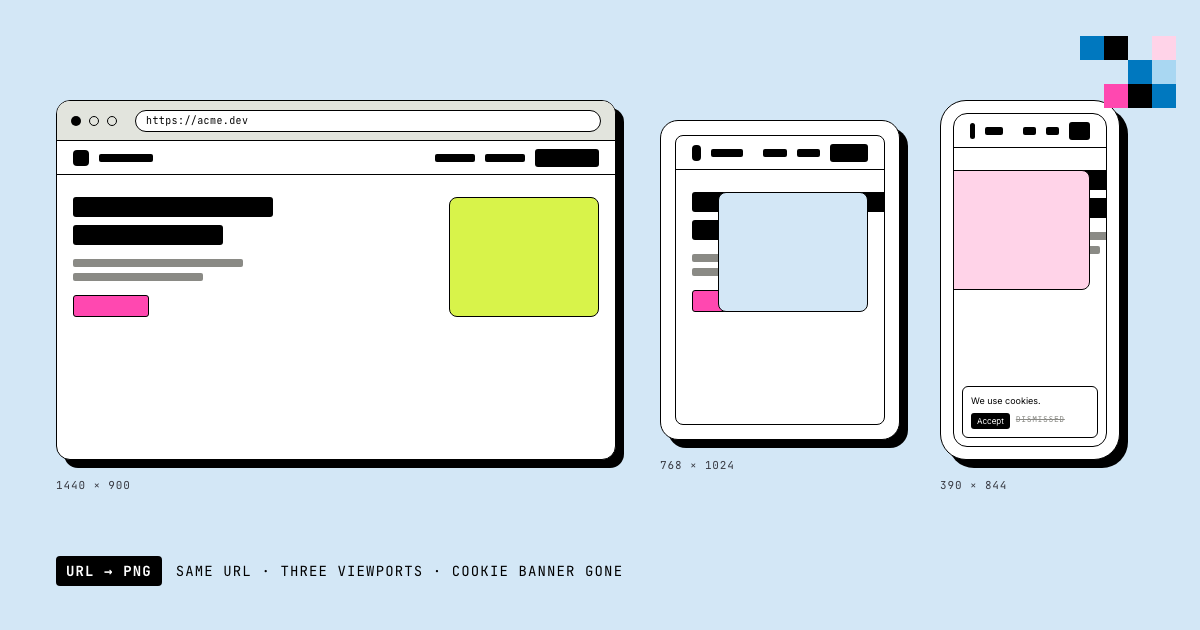
A website screenshot API takes a URL and returns an image of the rendered page, used for link previews, visual regression monitoring, and automated screenshots at scale, without running your own browser infrastructure.
The problem with screenshotting a webpage
You need a screenshot of a URL. Sounds trivial: open the page, take a picture. Then you actually try it: the cookie banner is covering half the content, the page is a React app that's still fetching data three seconds after "load" fires, the mobile version looks nothing like what you captured, and half your batch job's screenshots come back showing a blank white rectangle because the content hadn't rendered yet.
Website screenshot automation isn't hard because taking a screenshot is hard. It's hard because "the page is ready" is a much fuzzier concept than it sounds, and every real website actively works against you: consent modals, lazy-loaded images, infinite scroll, client-side routing that never quite finishes loading.
This guide covers what actually breaks when you automate website screenshots at any real scale (cookie banners, wait-timing on JS-heavy apps, mobile emulation, and the auth-wall limitation nobody likes admitting to), with production code for doing it right.
How website screenshot capture actually works
Under the hood, a website screenshot API is a headless browser with three jobs, done in order: navigate to the URL, decide when the page is actually ready, capture the pixels.
URL → Navigate → Wait strategy → Capture → Encode (PNG/JPG/WebP) → ReturnThe navigation step is the easy part: every headless browser can load a URL. The wait strategy is where almost every screenshot tool, homegrown or commercial, gets it wrong at least once. And capture itself has its own gotchas around viewport size vs. actual content size.
This is architecturally the same rendering engine used for HTML-to-image conversion: Pictify's /image endpoint takes either an html string or a url to fetch and screenshot; same headless browser, same capture pipeline, just a different starting point. If you already have the HTML and don't need to fetch a live page, that guide is the more direct path. Everything below is specific to the "I have a URL, not HTML" case.
Why this doesn't have a CORS problem (and client-side tools do)
If you've read the HTML-to-image guide, you know html2canvas and its siblings (html-to-image, dom-to-image) hit real walls with cross-origin fonts and images because they run inside the visitor's browser tab, subject to the browser's same-origin policy.
Screenshotting an arbitrary URL doesn't have this problem in the same way, but it has a different one. A server-side screenshot API isn't fetching resources through your browser's CORS sandbox, so a font hosted on a different origin than the page you're screenshotting loads fine. Where CORS-shaped pain resurfaces is if you try to do this from client-side JavaScript instead: you generally can't fetch and render an arbitrary third-party page's pixels from inside a browser tab at all, which is exactly why "screenshot this URL" is a server-side job, full stop. There's no client-side equivalent to reach for here the way html2canvas exists for the HTML-rendering problem.
Failure mode 1: cookie banners and consent modals eating your screenshot
This is the single most common practical problem in website screenshot automation, and it's almost never mentioned in getting-started docs. Take a naive screenshot of nearly any European or CCPA-compliant site and you get a full-screen consent modal instead of the content you wanted.
// What you get with a naive screenshot of most real websites:
// [gray overlay] [cookie consent modal] [Accept All] [Manage Preferences]
// ...and none of the actual page content
A homegrown Puppeteer setup has to detect and dismiss these, which means maintaining a growing list of consent-manager selectors (OneTrust, Cookiebot, Quantcast, a dozen homegrown ones) because there's no universal standard for what a "reject/accept" button looks like in the DOM. This is exactly the kind of long-tail maintenance burden that makes "just script it yourself" more expensive than it looks on day one: it's not one fix, it's an ongoing list you keep patching as sites change their consent vendor.
Pictify's screenshot capture handles common cookie-consent overlays as part of the render pipeline, so this is one less thing you maintain a selector list for. If a page uses something exotic enough to slip through, the selector parameter (below) lets you target and capture just the content region directly, sidestepping the modal entirely.
Failure mode 2: "the page loaded" doesn't mean "the page is ready"
This is the big one, and it's the same root problem the HTML-to-image guide covers for networkidle0 in Puppeteer, except worse for arbitrary third-party URLs, because you don't control the site's code.
A traditional multi-page site fires its load event when the HTML, CSS, and images are done. A React/Vue/Svelte single-page app fires load when the shell is done, then spends the next 1-3 seconds making XHR/fetch calls to hydrate the actual content you wanted a screenshot of. Capture too early and you get a loading spinner or a blank content area.
// Wrong: capture immediately on navigation complete
await page.goto(url, { waitUntil: 'load' });
await page.screenshot(); // often captures a loading skeleton on SPAs

// Better, but still heuristic: wait for network idle
await page.goto(url, { waitUntil: 'networkidle0' }); // no requests for 500ms
await page.screenshot();
// Breaks on: polling dashboards, analytics beacons, chat widgets,
// anything that makes a periodic background request; networkidle0
// literally never fires because the network is never idle.

// Most reliable when you know the target: wait for a specific element
await page.waitForSelector('#main-content', { visible: true });
await page.screenshot();
The third approach (wait for a specific selector rather than a generic network-idle heuristic) is the one that actually works reliably for SPA-heavy targets, which is exactly why Pictify's selector parameter exists for more than just cropping: pointing it at content you know appears once the page is truly ready doubles as a readiness signal, not just a capture-region.
Failure mode 3: full-page vs. viewport-only capture
You ask for a screenshot at 1440×900. What you get is exactly 1440×900 pixels: the visible viewport, not the whole scrollable page. If the page is taller than that and you wanted the full thing, you need to set height explicitly to the content's real height, not just the viewport size you'd use for a normal browser window.
The practical complication: pages with infinite scroll or scroll-triggered lazy loading (images that only load via IntersectionObserver as they enter the viewport) will show blank gaps in a tall capture, because content below the fold was never triggered to load in the first place. This isn't specific to any one vendor; it's inherent to how lazy loading works: nothing scrolled past it, so nothing loaded.
# Capture the visible viewport only
curl -X POST https://api.pictify.io/image \
  -H "Content-Type: application/json" \
  -H "Authorization: Bearer YOUR_API_KEY" \
  -d '{"url": "https://example.com", "width": 1440, "height": 900, "fileExtension": "png"}'

# Capture a taller region for a longer page: set height to the real
# content height you want, not just a "viewport" size (max 4000px)
curl -X POST https://api.pictify.io/image \
  -H "Content-Type: application/json" \
  -H "Authorization: Bearer YOUR_API_KEY" \
  -d '{"url": "https://example.com", "width": 1440, "height": 3600, "fileExtension": "png"}'
If your target page is taller than 4000px (the max supported dimension) or relies heavily on scroll-triggered lazy loading, plan for that up front; this is a real constraint of the category, not just a Pictify limit. For known-tall pages, capturing a specific #content region with selector rather than the whole page is often the more reliable move than fighting lazy-load timing on a giant viewport.
Failure mode 4: mobile emulation isn't just "make it narrow"
Naive mobile screenshot implementations set a narrow viewport width and call it done. Real mobile emulation matters because a meaningful number of sites serve different content based on user-agent detection, not just responsive CSS: narrow-but-desktop-UA still gets the desktop experience on some sites, which isn't what you wanted when you asked for a "mobile screenshot."
Pictify's device presets set both dimensions to real device viewport sizes rather than an arbitrary narrow width:
const devicePresets = {
  desktop: { width: 1440, height: 900 },
  tablet:  { width: 768,  height: 1024 },
  mobile:  { width: 375,  height: 812 },  // iPhone-class viewport
};
These are viewport-size presets, not just convenience shortcuts to remember numbers, but it's worth being precise about what they do and don't guarantee: a narrow viewport strongly signals "mobile" to responsive CSS and to sites that branch on screen width, but it isn't a substitute for full device emulation (touch event simulation, exact device pixel ratio, mobile-specific user-agent string) if a target site's mobile detection is unusually aggressive. For the overwhelming majority of responsive sites, viewport width alone is what actually determines the rendered layout; that's the case these presets solve for.
Failure mode 5: pages behind a login
This is a real, honest limitation of the entire "give me a URL, get an image" category, not just Pictify: if the content you want a screenshot of requires being logged in, a stateless URL-in-image-out API has no session to work with. There's no cookie jar, no auth header, no way to represent "as this logged-in user" in a single URL.
If you're screenshotting content behind auth, you have two real options: expose a signed, unauthenticated preview URL specifically for the screenshot job (common pattern for "shareable snapshot" features), or run your own headless browser instance where you control the full navigation flow, including logging in first. This isn't a gap you fix by asking harder; it's a structural limitation of the API shape, and any vendor telling you otherwise is either doing something much more invasive (storing your credentials) or not being straight with you about the tradeoff.
Production-grade implementations
Node.js
const PICTIFY_API = 'https://api.pictify.io/image';

async function screenshotUrl(url, options = {}) {
  const {
    width = 1440,
    height = 900,
    format = 'png',
    selector = null,
    timeout = 20000,
  } = options;

  const controller = new AbortController();
  const timeoutId = setTimeout(() => controller.abort(), timeout);

  const payload = { url, width, height, fileExtension: format };
  if (selector) payload.selector = selector;

  try {
    const response = await fetch(PICTIFY_API, {
      method: 'POST',
      headers: {
        'Content-Type': 'application/json',
        'Authorization': `Bearer ${process.env.PICTIFY_API_KEY}`,
      },
      body: JSON.stringify(payload),
      signal: controller.signal,
    });

    if (!response.ok) {
      const error = await response.json().catch(() => ({}));
      throw new Error(`Screenshot failed (${response.status}): ${error.message || 'Unknown error'}`);
    }

    const data = await response.json();
    return data.url; // CDN-hosted image URL
  } finally {
    clearTimeout(timeoutId);
  }
}

// Retry wrapper for batch jobs (visual regression suites, scheduled monitoring)
async function screenshotWithRetry(url, options = {}, retries = 2) {
  for (let attempt = 0; attempt <= retries; attempt++) {
    try {
      return await screenshotUrl(url, options);
    } catch (err) {
      if (attempt === retries) throw err;
      if (err.message.includes('400')) throw err; // don't retry bad input

      const delay = Math.pow(2, attempt) * 1000;
      console.warn(`Screenshot attempt ${attempt + 1} failed, retrying in ${delay}ms:`, err.message);
      await new Promise((r) => setTimeout(r, delay));
    }
  }
}
Python
import requests
import os
import time

def screenshot_url(url: str, width=1440, height=900, fmt="png", selector=None, retries=2) -> str:
    """Screenshot a URL via Pictify API. Returns CDN URL."""
    payload = {"url": url, "width": width, "height": height, "fileExtension": fmt}
    if selector:
        payload["selector"] = selector

    for attempt in range(retries + 1):
        try:
            resp = requests.post(
                "https://api.pictify.io/image",
                headers={"Authorization": f"Bearer {os.environ['PICTIFY_API_KEY']}"},
                json=payload,
                timeout=20,
            )
            resp.raise_for_status()
            return resp.json()["url"]
        except requests.exceptions.RequestException as e:
            if attempt == retries:
                raise
            if hasattr(e, "response") and e.response is not None and e.response.status_code < 500:
                raise  # don't retry client errors
            delay = 2 ** attempt
            print(f"Attempt {attempt + 1} failed, retrying in {delay}s: {e}")
            time.sleep(delay)


# Batch monitoring example: screenshot a list of URLs on a schedule,
# e.g. for visual regression / uptime-with-a-picture checks
def monitor_urls(urls: list[str]) -> dict[str, str]:
    results = {}
    for url in urls:
        try:
            results[url] = screenshot_url(url)
        except Exception as e:
            results[url] = f"FAILED: {e}"
    return results
Go
package screenshot

import (
    "bytes"
    "encoding/json"
    "fmt"
    "io"
    "net/http"
    "os"
    "time"
)

type ScreenshotRequest struct {
    URL           string `json:"url"`
    Width         int    `json:"width"`
    Height        int    `json:"height"`
    FileExtension string `json:"fileExtension"`
    Selector      string `json:"selector,omitempty"`
}

type ScreenshotResponse struct {
    URL string `json:"url"`
}

func ScreenshotURL(targetURL string, width, height int, selector string) (string, error) {
    payload, _ := json.Marshal(ScreenshotRequest{
        URL:           targetURL,
        Width:         width,
        Height:        height,
        FileExtension: "png",
        Selector:      selector,
    })

    client := &http.Client{Timeout: 20 * time.Second}
    req, _ := http.NewRequest("POST", "https://api.pictify.io/image", bytes.NewBuffer(payload))
    req.Header.Set("Content-Type", "application/json")
    req.Header.Set("Authorization", "Bearer "+os.Getenv("PICTIFY_API_KEY"))

    resp, err := client.Do(req)
    if err != nil {
        return "", fmt.Errorf("screenshot request failed: %w", err)
    }
    defer resp.Body.Close()

    if resp.StatusCode != 200 {
        body, _ := io.ReadAll(resp.Body)
        return "", fmt.Errorf("screenshot failed (%d): %s", resp.StatusCode, string(body))
    }

    var result ScreenshotResponse
    json.NewDecoder(resp.Body).Decode(&result)
    return result.URL, nil
}Capturing a specific element instead of the whole page
Sometimes you don't want the whole viewport; you want one card, one chart, one pricing table, cleanly cropped, with no header/footer/nav around it. The selector param captures exactly that element instead of the full page:
curl -X POST https://api.pictify.io/image \
  -H "Content-Type: application/json" \
  -H "Authorization: Bearer YOUR_API_KEY" \
  -d '{
    "url": "https://example.com/pricing",
    "selector": "#pricing-table",
    "width": 1200,
    "height": 800,
    "fileExtension": "png"
  }'
This is also the cleanest workaround for stubborn cookie banners or promotional overlays that resist automatic dismissal: target the content region directly and the overlay never enters the frame.
When to use a screenshot API vs. build it yourself with Puppeteer
Same decision framework as the HTML-to-image guide, applied to the URL-screenshot case specifically:
Build it yourself with Puppeteer/Playwright if:
- You need to screenshot pages behind authentication you control (you can drive the login flow yourself)
- You need capture logic tightly coupled to app-specific readiness signals only your own team would know
- You already run browser infrastructure and screenshotting is a minor add-on, not a new operational surface
Use a screenshot API if:
- You're screenshotting public URLs: your own pages, or third-party pages you don't control
- You don't want to own cookie-banner-selector maintenance, browser-version upgrades, and memory-leak babysitting (see the HTML-to-image guide's "Problem 1: Memory leaks" section; every issue documented there for HTML rendering applies identically to URL screenshotting, since it's the same underlying headless-browser operational surface)
- You're running this at any real scale (scheduled visual regression checks, link-preview generation, competitor monitoring) where "one more thing that can OOM-kill your container" isn't a burden you want
Approach comparison
| DIY (Puppeteer/Playwright) | Screenshot API | |
|---|---|---|
| Time to first screenshot | Hours (install deps, write pool management) | Minutes |
| Cookie-banner handling | You maintain a selector list per consent vendor | Handled |
| Browser/Chromium upgrades | Your responsibility, breaks CI occasionally | Not your problem |
| Memory management at scale | Browser pooling, forced recycling (see HTML-to-image guide) | Not your problem |
| Infra to run | Container with Chromium deps (400-900MB image) | None (just an HTTP call) |
| Auth-gated pages | Fully controllable (you drive the login) | Same category limitation either way |
| Best for | Low-volume, tightly custom capture logic | Everything else |
Debugging checklist
When a screenshot doesn't look right, work through this:
- Blank or loading-skeleton content? → Almost always a wait-timing issue on a JS-heavy page. Try targeting a
selectorthat only appears once real content has rendered, rather than relying on a generic delay. - Cookie banner or modal in the shot? → Try
selectorto target the content region directly and skip the overlay entirely. - Image cropped shorter than expected? →
heightcaps at 4000px, and the capture is exactly the dimensions you request; it doesn't auto-detect "the full page," so setheightto your actual target content height. - Gaps or missing images in a tall capture? → Likely scroll-triggered lazy loading that never fired because nothing scrolled past it. Consider capturing a specific region with
selectorinstead of the whole long page. - Mobile screenshot looks like desktop? → Confirm you're passing the mobile preset's width/height (375×812), not just a narrower desktop width, and be aware some sites branch on more than viewport width.
- Nothing renders at all? → Confirm the URL is genuinely public. Auth-gated content is a structural limitation of URL-in-image-out capture (see Failure mode 5); no width/height/selector combination fixes that.
Next steps
- Try it now: URL to Image tool: enter a URL, get a screenshot, no signup required
- Read the HTML to Image API guide: for when you have HTML instead of a live URL to screenshot
- Pictify vs ScreenshotOne
- Pictify vs ScreenshotAPI
- Pictify vs Screenshot Machine
- Pictify vs APIFlash
- Get an API key: start building
- API reference: full docs for the image endpoint
Built with Pictify, the image generation API for developers. No Puppeteer, no infra, no headaches.
Ship documents, images and video from one template.
50 renders a month on the free tier. No card, no watermark.
Start free